What this tool does
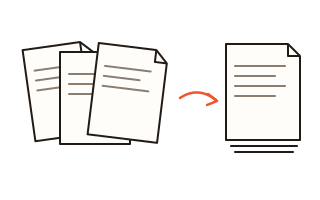
This tool joins two or more PDF documents into a single file. Add the files, arrange them in the order you want and press Merge PDF. The pages of each file follow one another exactly as they were, with their text, images, fonts and links untouched.
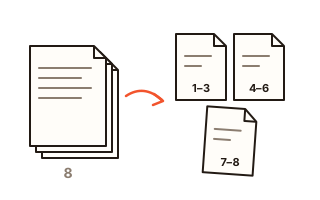
Each file can contribute only some of its pages: type a range such as 1-3, 7 next to it to take just those pages, or leave the box empty to take all of them. A file that was scanned sideways can be turned a quarter turn at a time before it goes in.
Bookmarks, the outline you see in the side panel of a PDF reader, are carried over from every file and point to the right pages in the merged document. You can also add one bookmark per file, named after the file, so that a long merged report is easy to find your way around.
How to use it
- Click Choose PDF files or drag the files onto the box. You can add more files at any time.
- Arrange the list: drag a file by its handle, use the arrow buttons, or sort the whole list by file name.
- If you need only part of a file, type the pages in its Pages box, for example 2-5 or 1, 3, 8- (page 8 to the end). The turn button rotates all pages of that file.
- Choose whether to keep the bookmarks of each file and whether to add a bookmark for each file.
- Press Merge PDF. The merged file goes to your downloads folder; use Download again if you need another copy.
What is kept and what is not
Page content is copied as it is, so text stays selectable and searchable and pictures keep their quality. Links that jump to another page of the same document keep working and point to that page in the merged file; a link to a page you left out is removed rather than left behind as a dead link. Fillable form fields stay fillable, and when two files use the same field names, the later ones get a number added so they do not share values.
Some things are not carried over. Digital signatures stop being valid once a document is changed, and the accessibility tags of tagged PDFs, page labels (such as roman numerals for a preface), file attachments and article threads are dropped. Password-protected files cannot be opened here, so save a copy without the password in the program you normally use, then add that copy.
Large files and many files
There is no limit on the number of files or on how often you merge, and no waiting time between jobs. Because the work happens in your browser, the practical limit is the memory of your device: a phone handles a few hundred pages easily, and a computer copes with much larger documents. Before merging very large scans, close other tabs to free memory.
Your data
Your PDF files are read and combined inside this browser tab and are never sent to a server. The small page pictures in the list are drawn on your device as well. Only your two bookmark settings are remembered in this browser; the files themselves are forgotten as soon as you close or reload the page.
Questions and answers
Is there a limit on file size or on how many PDFs I can merge?
There is no fixed limit and no daily quota. Very large documents are limited only by the memory of your device.
Will merging reduce the quality of my PDF?
No. Pages are copied, not redrawn or compressed again, so text, vector drawings and images stay exactly as they were.
Why can't I add a password-protected PDF?
An encrypted file has to be decrypted before its pages can be copied, and this tool does not handle passwords. Open the file in the program you read it with, save a copy without the password and add that copy instead.
Can I merge only some pages of a file?
Yes. Type the pages in the Pages box next to the file, for example 1-3, 6 or 10- for page 10 to the end. Pages are taken in the order you type them, so 3, 1, 2 puts page 3 first.
Do bookmarks and internal links still work after merging?
Yes. Bookmarks and links that jump to another page are re-pointed to the matching page in the new file. Those that lead to pages you did not include are left out.