What this tool does
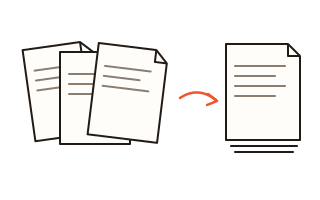
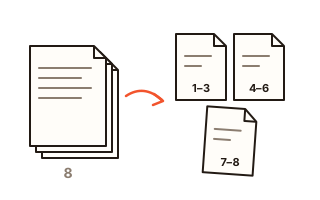
Use this tool to break a long PDF into parts. Type the page ranges you want as separate files, cut the document into equal pieces of a few pages each, or click the pages you want to keep and save them as a new, shorter PDF.
If the document has bookmarks, it can also be split chapter by chapter: every top-level bookmark starts a new file named after its title. That is handy for textbooks, manuals and long reports that already come with a table of contents.
Before you save, a list shows exactly which files will be created and how many pages each one has. A single result is saved as a PDF; several results are packed into one ZIP file, so your browser downloads them in one go.
How to use it
- Choose a PDF or drop it onto the box. Small pictures of its pages appear below the options.
- Pick how to split it: by page ranges, every N pages, by picking pages, or by bookmarks.
- For ranges, type something like 1-3, 4-8, 9-. Each range becomes its own file, or tick the box to put them all into one PDF. To extract pages, click their pictures or type their numbers.
- Check the list of files that will be made, then press Split PDF (or Extract pages).
- Open the ZIP to find the separate files. Each one is named after the original file and the pages it holds.
Ways to write page ranges
Separate ranges with commas. A dash joins the first and last page of a range, so 4-8 means pages 4 to 8. Leave out the last number to go to the end of the document (12-), or the first number to start at page 1 (-3). A single number takes a single page.
Ranges may overlap or repeat, which helps when several handouts share a cover page. When the ranges are put into one PDF, the pages follow the order in which you typed them.
Bookmarks, links and file names
Each new file keeps the bookmarks that point into its own pages, and a link between two pages that ended up in the same file still works. Links to pages that went into another file are removed, so nothing points to a missing page.
Files split by bookmarks are numbered in reading order and named after the bookmark titles, with characters that file systems do not allow taken out. Pages before the first bookmark, such as a cover, are saved as a file of their own.
Your data
The PDF is opened and split inside your browser. It is not uploaded, and the page pictures are drawn on your device. Your choice of splitting method and options is remembered in this browser for next time; the document itself is never stored.
Questions and answers
How do I extract a single page from a PDF?
Choose Pick pages, click the page you want (or type its number) and press Extract pages. That page is saved as a new PDF.
Can I split a PDF into one file per page?
Yes. Choose Every N pages and set it to 1, or pick pages and tick “Save each selected page as its own PDF”. All the files arrive together in one ZIP.
Why did I get a ZIP file instead of PDFs?
Browsers block or question a page that starts many downloads at once, so several results are packed into one ZIP. Most computers open a ZIP with a double click, and on a phone the Files app can unpack it.
Does splitting change the quality of the pages?
No. Pages are copied as they are, without being redrawn or compressed, so text stays sharp and searchable.
Can I split a password-protected PDF?
Not here. Save a copy without the password in the program you read it with, then split that copy.