What this tool does
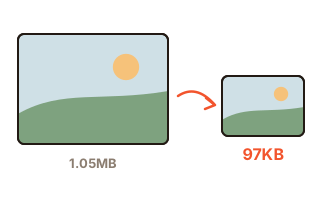
A phone photo is often 3–10 MB, which is too heavy for email attachments, job portals or forms that ask for “under 200 KB”. This tool re-saves each picture so that the details your eye barely notices go first, and the file shrinks a lot.
You can set the quality yourself, or enter a target size. In target mode the tool saves the image at different qualities and halves the range each time, so the result lands just under your limit instead of far below it.
How to use it
- Drop photos onto the box or click to choose them. Many at once is fine.
- Choose “Set quality” and pick a number, or “Hit a file size” and click 50 KB, 100 KB or 200 KB, or type your own.
- Check the new size and percentage in the list, and use Compare to slide between the original and the result.
- Save files one by one, or use Save all to get a single ZIP.
Why JPG, PNG and WebP shrink differently
JPG and WebP throw away fine texture as the quality number goes down. Around 70–80 a photo usually drops to 20–40% of its size with no difference you could point at.
PNG is lossless and has no quality setting, so the tool reduces it to 256 colors or fewer, the same idea well-known PNG shrinkers use. Logos, screenshots and illustrations often lose more than half their weight. Pictures that already use 256 colors or fewer are stored with an exact palette, pixel for pixel.
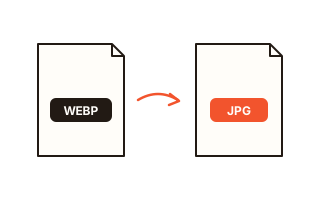
Switching the format to WebP or AVIF gives smaller files than JPG at the same quality, but whoever receives the file must be able to open it. For uploads to official forms, JPG is the safe choice.
When the target is very small
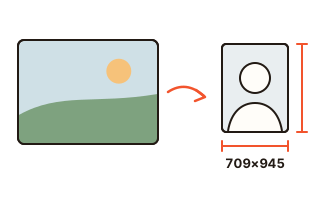
Squeezing a 12-megapixel photo into 50 KB needs a very low quality, which shows blocky artifacts. With “also reduce the pixel size” on, the tool lowers the dimensions when quality would fall below 50, which looks cleaner at the same file size. Turn it off when the pixel size is fixed, as with passport photos.
If the original is already under the target, it is kept untouched. The same happens when re-saving would make a file bigger: you never get a worse and larger copy.
Removing the location (EXIF)
Phone photos usually carry the date, the camera model and the GPS position where they were taken. By default the location is removed and the rest is kept. The saved file is read back to confirm the location is really gone before the list says so.
Your data
Images are processed in a background thread of your browser and are never sent to any server. Only your settings, such as quality and target size, are remembered in this browser for next time; the photos themselves are not stored, and the list disappears when you close the page.
Questions and answers
How many photos, and how large, can I add?
There is no fixed limit on how many. Because nothing is uploaded, you can add as many as your device's memory allows. Each image can be up to 16,384 pixels per side and 120 megapixels in total. Photos are processed one after another and can be saved as one ZIP.
I targeted 100 KB but a website says the file is too big.
This tool counts 1 KB as 1,024 bytes, like Windows does. If a site counts 1 KB as 1,000 bytes, enter about 97 KB instead.
Which quality should I use?
For the web and messaging, 70–80 is plenty. For printing or further editing, use 90 or more. Sliding the Compare bar across the picture is the surest way to decide.
Does it work with iPhone HEIC photos?
Yes, in browsers that open HEIC themselves, such as Safari. Chrome and Edge cannot decode HEIC, so set Settings › Camera › Formats to “Most Compatible”, or export the photo as JPG when sharing it.
Why is my photo lying on its side?
The tool reads the rotation stored in the photo and saves it upright, so this is rare. If an app still shows it sideways, that app is applying the rotation twice; save again with “Photo info: Remove all”.