What this tool does
This tool changes how many pixels wide and tall a picture is. Type the pixels, scale to a percentage of the original, or describe a print size such as 3.5 × 4.5 cm together with a resolution in DPI. Add several pictures and they are all resized by the same rule.
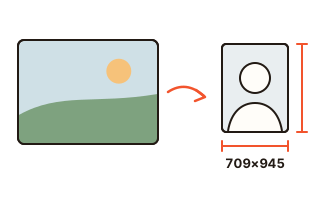
Presets cover the Korean ID and passport photo sizes (3 × 4 cm and 3.5 × 4.5 cm at 600 DPI) and common social media formats. When a photo has a different shape than the preset, it is cropped from the center so the frame is filled.
How to use it
- Drop pictures onto the box or click to choose them. Landscape and portrait photos can be mixed.
- Choose Pixels, Percent, Print size or Presets, and enter the size.
- Pick what happens when the shape differs (crop to fill, fit with a border, or stretch) and the format to save in.
- Check the new dimensions in the list and save each file, or all of them as one ZIP.
How centimeters, pixels and DPI relate
Pixels needed = inches × DPI. One inch is 2.54 cm, so printing 3.5 cm at 600 DPI takes 3.5 ÷ 2.54 × 600 ≈ 827 pixels. The tool does this math and also writes the DPI into the saved JPG or PNG, so photo printing software and word processors place it at the intended physical size.
For pictures that are only shown on screens, DPI means nothing and only the pixel count matters. For blogs and social media, use Pixels or one of the social presets.
Three ways to handle a different shape
Crop to fill covers the whole frame and trims the edges that stick out, which suits ID photos and thumbnails.
Fit with a border keeps the entire picture and fills the leftover strips with a color you choose. Use it for product shots and logos that must not be cut.
Stretch ignores the proportions and forces the exact size. People can look squashed, so choose it only when you have to.
Quality when shrinking and enlarging
When shrinking a lot, the browser's high-quality resampling blends many pixels into one, which avoids jagged edges and moiré. Enlarging cannot invent missing detail, so pictures get softer; keep “Don't enlarge smaller images” on to avoid doing it by accident.
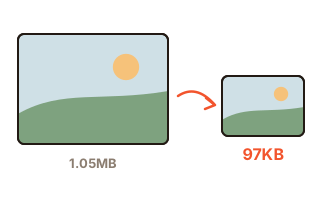
If a form also limits the file size, fill in Max file size. The pixel size stays as set and the tool saves the highest quality that fits.
Your data
Pictures are read and resized only inside this browser and are never sent to a server. Your size and format settings are remembered in this browser for convenience; the list of pictures is gone when you close the page.
Questions and answers
How many pixels is a 3.5 × 4.5 cm photo?
At 600 DPI it is 827 × 1063 pixels, at 300 DPI 413 × 531 pixels. If the place you submit to asks for specific pixels, type them in Pixels mode, untick Keep aspect ratio and choose Crop to fill.
Will a mix of landscape and portrait photos get distorted?
No. If you enter only one side, such as a width of 1280 pixels, each photo gets its own height from its proportions. Entering both sides fits each photo inside that box.
Does enlarging a small picture make it sharper?
No. Enlarging fills in pixels by estimation, so the result is a little softer. If a print lacks DPI, printing smaller usually looks better than enlarging.
What are the saved files called?
The new size is added to the original name, so photo.jpg resized to 1280 × 960 becomes photo-1280x960.jpg. Several files can be saved together as one ZIP.
Does the file size go down too?
Fewer pixels usually means a smaller file. If you have a strict size limit, fill in Max file size and the tool tries to keep each file under it.